How to Fix the Copy.ai “Google Login Not Working” Issue
Struggling with the Copy.ai "Google Login Not Working" error or stuck in an authentication loop? Learn the common causes and follow our quick step-by-step troubleshooting guide—from clearing OAuth cookies to using the Magic Link workaround—to regain access to your account fast.

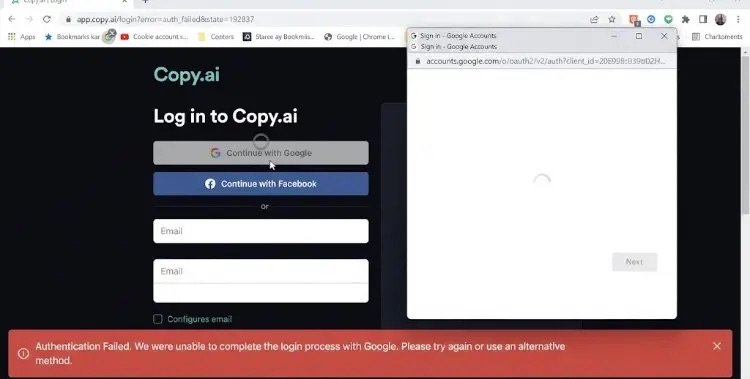
Copy.ai login error showing an authentication failure with Google.
The “Continue with Google” option on Copy.ai is designed to get you into your workspace in one click. However, users occasionally run into frustrating roadblocks: clicking the Google button might trigger an endless loading loop, refresh the login screen without signing in, display a blank pop-up window, or throw an authentication error.
In most cases, this issue is not caused by a Copy.ai server outage. Instead, it stems from corrupted browser session data, strict third-party cookie blockers, or account-linking conflicts.
Common Causes of Copy.ai Google Login Failures
- Corrupted Cache and OAuth Cookies: Outdated or conflicting session tokens stored in your browser can prevent Google and Copy.ai from completing the authentication handshake.
- Blocked Third-Party Cookies: Privacy-focused browsers (like Brave or Safari) or strict Chrome privacy settings often block the cross-site cookies required for Google OAuth pop-ups to pass credentials back to Copy.ai.
- Ad Blockers, Privacy Extensions, and VPNs: Extensions like uBlock Origin, Privacy Badger, or active VPN connections can mistakenly flag Google’s redirect scripts as trackers or suspicious traffic and block them.
- Sign-Up Method Mismatch: If you originally created your Copy.ai account manually using an email address (Magic Link) rather than the Google button, the system may fail to link the two authentication methods automatically.
Step-by-Step Solutions
Follow these troubleshooting steps in order to regain access to your account:
1. Test Login in an Incognito or Private Window
Testing in a clean session immediately tells you whether the problem is tied to your browser’s cache or an installed extension.
- Open an Incognito / Private Window (
Ctrl + Shift + Non Windows,Cmd + Shift + Non Mac). - Navigate to
app.copy.aiand click Continue with Google. - If you can log in normally, your account is fine—the culprit is a browser extension or corrupted site data in your main browser window.
2. Clear Site Data for Copy.ai and Google Only
You do not need to wipe your entire browsing history; clearing cookies specifically for the two domains involved is enough.
- Go to
app.copy.aiand click the site settings / lock icon on the left side of the address bar. - Select Cookies and site data > Manage on-device site data.
- Delete all stored entries for
copy.aiand refresh the page. - If the error persists, repeat the same process for
accounts.google.com.
3. Temporarily Disable Ad Blockers and VPNs
Authentication pop-ups rely on background redirects that security tools frequently interrupt:
- Pause AdBlock, uBlock Origin, Ghostery, or any script-blocking extensions on
app.copy.ai. - Disconnect your VPN or Proxy temporarily. Google’s security filters sometimes stall OAuth requests if your IP address changes mid-session or routes through a flagged server.
4. Allow Third-Party Cookies for Copy.ai
Google Sign-In requires cross-site cookie permissions to verify your identity across domains.
- Open your browser’s Privacy and Security settings and locate Third-party cookies.
- Ensure third-party cookies are not completely blocked, or add
[*.]copy.aito your allowed sites list. - If you use Brave, click the Brave Shields (Lion) icon in the address bar and toggle Shields down for
app.copy.ai.
5. Bypass the Google Button Using a “Magic Link”
If the Google OAuth window refuses to cooperate, you can still access the exact same account using your Gmail address directly:
- On the Copy.ai login screen, ignore the Google button and type your Gmail address into the email input field below it.
- Click Continue with Email.
- Open your Gmail inbox and click the one-click login link (Magic Link) sent by Copy.ai to enter your workspace directly.
Still Locked Out?
If none of the steps above resolve the login loop, the restriction may be at the account or network level:
- Google Workspace Restrictions: If you are signing in with a company or school Google Workspace email, your IT administrator may have restricted third-party app logins. Ask your admin to whitelist Copy.ai in the Google Admin console.
- Contact Support: Try logging in from a different browser or mobile device to rule out local network blocks. If you remain locked out, email
support@copy.aifrom your registered address with a screenshot of the error or behavior so they can inspect your account status.