How to Fix the Copy.ai “Forgot Password” Reset Not Working Issue
Locked out of Copy.ai? Learn why your password reset isn't working and discover step-by-step solutions to fix SSO issues, email delivery delays, and login errors.

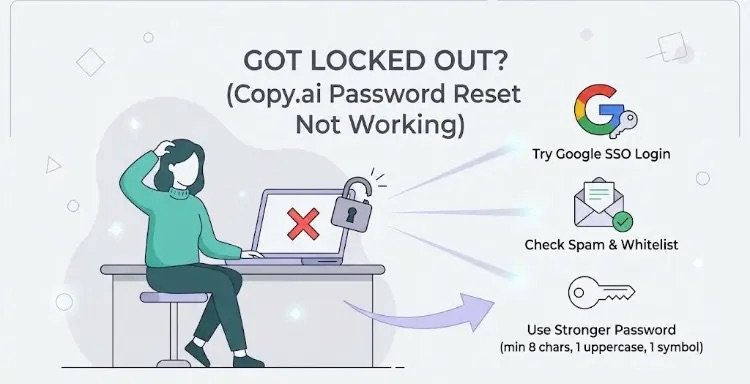
An illustration showing a user struggling to access their Copy.ai account with text reading “Got Locked Out? (Copy.ai Password Reset Not Working)”. The image offers three solutions: “Try Google SSO Login”, “Check Spam & Whitelist”, and “Use Stronger Password (min 8 chars, 1 uppercase, 1 symbol)”.
Running into a broken password reset loop when trying to access your Copy.ai account can bring your workflow to a halt. When you click “Forgot Password?” and either never receive the reset email or encounter an error when submitting your new password, it usually comes down to how your account was originally registered, email filtering, or browser cache conflicts.
Here is a breakdown of why this happens and the step-by-step solutions to get back into your account.
Why the Copy.ai Password Reset Fails
- OAuth / Social Login Mismatch: If you originally signed up using “Continue with Google” or “Continue with Microsoft,” Copy.ai does not store a traditional password for your account. Requesting a password reset link for an SSO-linked email will either do nothing or fail to send an email.
- Email Delivery Delays or Filtering: Automated reset emails from Copy.ai can occasionally get caught in aggressive spam filters, corporate firewalls, or Gmail’s “Promotions” and “Updates” tabs.
- Expired or Invalidated Tokens: Password reset links are time-sensitive and single-use. If you requested multiple reset links in a row, clicking an older email link will result in an error because the newer request invalidated it.
- Browser Cache & Extension Interference: Corrupted session cookies, strict ad blockers, or password manager extensions can block the reset form from submitting properly.
How to Fix the Copy.ai Password Reset Issue
Follow these steps in order from the quickest fix to deeper troubleshooting.
1. Try Signing In with Google or Microsoft
Before troubleshooting email delivery, verify whether your account uses Single Sign-On (SSO).
- Go to the Copy.ai login page.
- Instead of typing your email and password, click Continue with Google (or Continue with Microsoft).
- Select the email address associated with your Copy.ai workspace.
If you originally registered via SSO, this will log you in immediately without needing a password.
2. Check All Email Folders and Whitelist Copy.ai
If you definitely registered with a standard email and password, the reset link may be hidden or blocked.
- Search your entire inbox (including Spam, Junk, Trash, and All Mail) for
Copy.aiorreset. - Wait at least 5–10 minutes before requesting another link, as email servers can occasionally queue automated messages.
- Add
noreply@copy.aiandsupport@copy.aito your email contacts or safe-sender list, then request one fresh password reset link.
3. Use an Incognito Window and Clear Cache
Browser extensions and cached data frequently break authentication forms.
- Open a private/incognito browser window (Ctrl + Shift + N on Windows or Cmd + Shift + N on Mac).
- Navigate to the Copy.ai login page and click Forgot Password?.
- Enter your email address, open the new reset link from your inbox, and paste it directly into the incognito window to set your new password.
4. Verify Password Requirements
If the reset page loads but rejects your new password when you click submit, ensure your new password meets standard security formatting:
- Use at least 8 to 12 characters.
- Include a mix of uppercase letters, lowercase letters, numbers, and at least one special character (e.g.,
@,#,$,!). - Avoid pasting trailing spaces at the end of the password.
5. Contact Copy.ai Support
If you have confirmed you are using the exact email address tied to your subscription and none of the steps above work, your account may be locked or experiencing a backend authentication issue.
- Visit the Copy.ai Help Center or email
support@copy.aifrom the email address registered to your account. - Include the email address associated with the workspace, any error messages you see on screen, and mention that the password reset flow is failing.
- Support can manually verify your account ownership and trigger a backend reset or switch your login method.