
Copy.ai Invoice Not Received: Causes & How to Fix It
Paid for Copy.ai but didn't receive your invoice or receipt? Discover the main causes behind missing billing emails and learn step-by-step how to download your invoices directly from the Stripe portal or contact support.

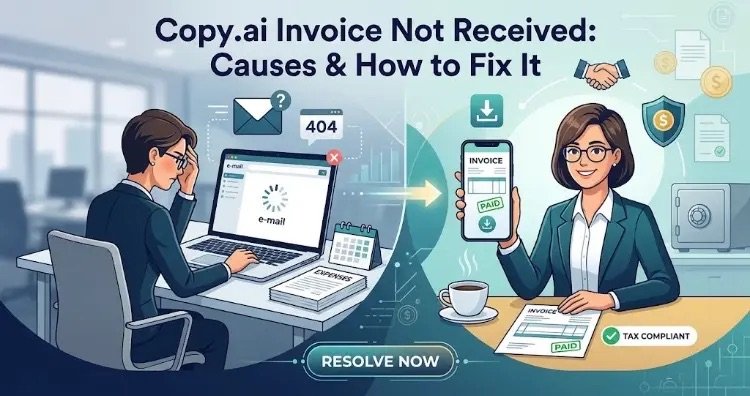
Missing your Copy.ai invoice? Here is how to quickly locate, download, or request your receipt step-by-step.
Copy.ai remains one of the premier AI-driven content generation platforms for solo creators, marketers, and digital agencies alike. However, a recurring topic across user forums and support communities is a particularly frustrating issue: paying for a subscription or renewal, only to find that the Copy.ai invoice or receipt never hits your inbox or billing dashboard.
Whether you need the invoice for expense reporting, tax compliance, or internal bookkeeping, missing billing documentation can halt administrative workflows. Below is a breakdown of why this issue occurs and the exact steps to resolve it.
Why Copy.ai Invoices Go Missing
When a transaction clears your account but no invoice or receipt follows, it is usually tied to one of several underlying technical or administrative factors:
- Stripe Integration & Email Delays: Copy.ai utilizes Stripe for payment processing. Even after a payment successfully completes, server-side processing lags or temporary automated mailing triggers on Stripe’s end can delay receipt delivery.
- Aggressive Spam Filters: Automated billing emails sent from billing@copy.ai or Stripe addresses often get caught in aggressive spam, promotional, or junk filters within Gmail, Outlook, or corporate email servers.
- Account Mismatch: If you signed up using “Continue with Google” or single sign-on (SSO), the primary billing email might default to a secondary personal address rather than your business inbox.
- Workspace Discrepancies: Copy.ai organizes accounts into individual Workspaces. If you manage multiple workspaces, the billing history for the active workspace might not reflect payments made under a different one.
Step-by-Step Solutions
1. Download Directly from the Stripe Billing Portal (Self-Service)
In most cases, you don’t need to wait for an email. You can generate and download your invoice directly within the platform:
- Log in to app.copy.ai.
- Click your Workspace Name in the upper-left menu.
- Select Settings or Subscription.
- Click Manage Billing.
- This redirects you to the secure Stripe Customer Portal. Under the Invoice History section, locate your latest transaction and click to download either the PDF Invoice or the Receipt.
2. Perform a Targeted Email Search
If you haven’t checked all mail folders, run a search using these specific keywords in your inbox search bar:
- from:copy.ai invoice
- from:stripe.com Copy.ai
- Copy.ai receipt
Be sure to inspect your Spam, Junk, Promotions, and Updates tabs.
3. Contact Copy.ai Billing Support
If the Stripe portal does not display your recent transaction, you will need to open a billing ticket with their support team:
- In-App Support Widget: Use the help icon in the bottom-right corner of the Copy.ai dashboard to initiate a ticket.
- Direct Email: Reach out via support@copy.ai or billing@copy.ai.
Information to Include in Your Support Ticket:
- Account registration email address
- Transaction date and exact charge amount (e.g., $49 on October 15)
- Last 4 digits of the payment card and cardholder name (never share your full card number or CVV)
Pro-Tip for Tax & Corporate Accounting
To ensure future invoices contain full corporate compliance details, add your Tax ID / VAT number and official company address inside the Stripe billing portal under Billing Information before your next renewal cycle. This ensures every generated document is a valid tax invoice rather than a basic payment receipt.