How to Fix “Copy.ai Downgrade Plan Not Working” Issue
Struggling to lower your Copy.ai subscription? Learn why the "Copy.ai downgrade plan not working" error happens and follow our step-by-step troubleshooting guide to successfully switch your plan or revert to the Free tier without unwanted charges.

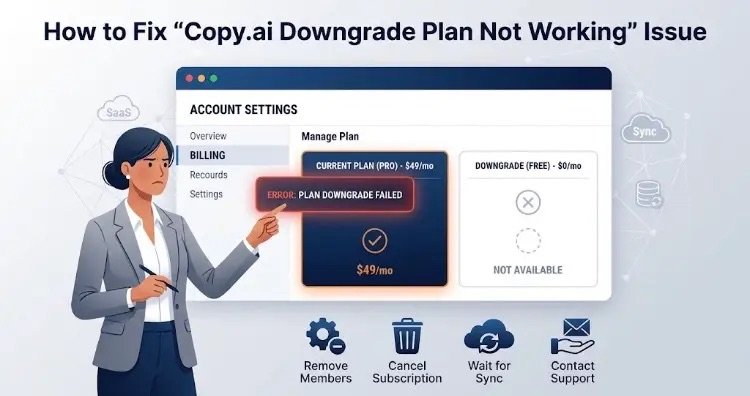
Troubleshooting the Copy.ai downgrade plan error on the billing settings dashboard.
If you are trying to lower your subscription tier or switch back to the Free plan on Copy.ai and running into errors, you are not alone. Many users encounter the “Copy.ai downgrade plan not working” issue when attempting to modify their billing settings.
This guide breaks down why this error occurs and provides a step-by-step troubleshooting path to get your account properly adjusted.
Why Copy.ai Won’t Let You Downgrade Your Plan
Understanding the root cause helps you select the right solution. The primary reasons include:
1. Workspace Seat and Member Limits
Higher-tier plans allow multiple team members on a single workspace. Free and entry-level plans generally restrict access to a single seat. If you still have active team members assigned under Workspace Settings, Copy.ai blocks the downgrade to prevent unintended access removal.
2. Confusion Between “Downgrading” and “Canceling”
Copy.ai does not always offer a direct “Downgrade to Free” button inside the user interface. Instead, the system expects you to cancel your active paid tier. The platform keeps your paid features active until the end of your billing cycle, after which your account automatically reverts to the Free plan.
3. Payment Gateway Sync Delays (Stripe)
Copy.ai handles billing via third-party processors like Stripe. If you attempt to change your plan right around your billing renewal date, API latency or synchronization delays between Copy.ai and Stripe can cause the interface to hang or fail to update.
4. Unpaid Invoices or Pending Charges
If your account has a failed renewal charge or an open invoice, the system locks plan modification features until the account balance is fully resolved.
5. Browser Cache or Session Glitches
Outdated cookies or browser session cache can prevent script triggers from sending the update request to Copy.ai servers.
Step-by-Step Solutions to Fix the Downgrade Issue
Follow these actionable steps in order to resolve the issue and downgrade your plan successfully.
Step 1: Remove Extra Workspace Members
Before attempting any plan change, ensure your account complies with lower-tier user limits:
- Log in to your Copy.ai dashboard.
- Navigate to Workspace Settings from the bottom-left menu.
- Select the Members tab.
- Remove all additional team members until only your primary account remains.
Step 2: Use “Cancel Subscription” Instead of Downgrade
To move to the Free tier, initiate a cancellation rather than searching for a downgrade button:
- Go to Settings > Billing.
- Click Cancel Subscription.
- Confirm the cancellation prompt.
Note: Canceling does not delete your account or instantly revoke access. You retain access to your paid features through the end of your current billing period. Once the cycle ends, your workspace automatically converts to the Free plan without further charges.
Step 3: Manage Subscription Directly via the Billing Portal
If the dashboard button is unresponsive, manage your subscription directly through the payment processor:
- Navigate to Settings > Billing.
- Click the link that reads Manage Billing via Stripe (or manage subscription portal).
- Update or cancel your subscription directly from the secure customer portal.
Step 4: Clear Cache or Use Incognito Mode
Rule out client-side interface glitches:
- Log out of your Copy.ai account.
- Clear your browser cache and cookies, or open a new Incognito / Private window.
- Log back in and retry the billing action.
Step 5: Contact Copy.ai Support
If your account remains stuck due to a backend synchronization error:
- Click the support/help icon at the bottom right of the Copy.ai interface or email support@copy.ai.
- Include your registered email address, a screenshot of the error, and a explicit request to downgrade your plan to Free at the end of the current billing cycle. The support team can process the change manually.