
Why Is Copy.ai Stuck in a Login Loop? (And How to Fix It)
Stuck in the Copy.ai login loop? Learn why the authorization sign-in error occurs and follow 5 quick, step-by-step methods to restore access to your account immediately.

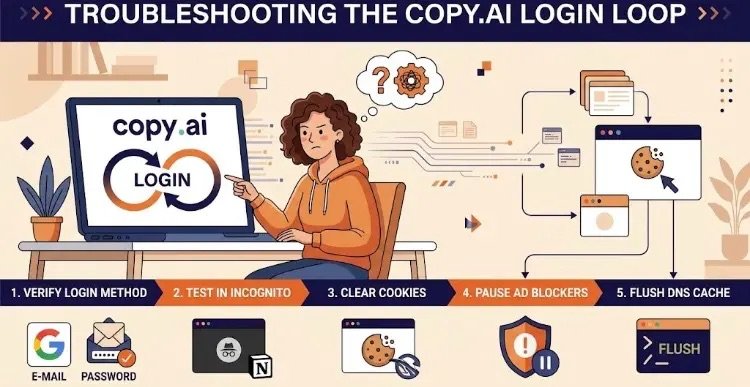
“A comprehensive troubleshooting infographic outlining the 5 step-by-step methods to fix the Copy.ai login loop issue.”
If you use Copy.ai regularly for content creation or copy drafting, you might have run into one of its most frustrating bugs: the Copy.ai Login Loop.
You head to the login page, click “Sign In,” select your Google account or type in your credentials… and instead of taking you to your dashboard, the app refreshes and throws you right back to the login screen. It spins in circles, leaving your account completely out of reach.
Why does this happen, and how can you break out of the loop without waiting hours for a support email reply? Here is a breakdown of what causes the issue and the exact step-by-step fixes to get you back into your workspace.
What Causes the Copy.ai Login Loop?
This issue typically stems from a breakdown in the authentication flow between your browser and Copy.ai’s authorization servers. The main culprits usually include:
- SSO (Single Sign-On) Method Mismatch: If you originally registered using “Continue with Google” but try logging in with an email/password combination (or vice versa), the authentication server fails to match your session ID.
- Corrupted Auth Cookies: Outdated or corrupted session tokens stored in your browser can clash with updated security protocols.
- Ad Blockers & Privacy Extensions: Tools like uBlock Origin, AdGuard, or aggressive browser privacy settings can mistake authentication redirection tokens (like
auth.copy.ai) for tracking scripts and block them. - Cached Browser Redirects: Your browser may cache a failed redirection attempt, automatically routing you back to the stuck login step every time you try to sign in.
Step-by-Step Fixes to Break the Loop
1. Verify Your Login Method
Over half of login loop issues stem from a simple mix-up in login type.
- Did you sign up via “Continue with Google” or via a direct Password?
- If you created your account with Google, avoid typing your email and password manually. Use the Google button directly. If you used an email/password, clicking the Google button forces Copy.ai to look for a matching SSO profile that doesn’t exist, kicking you back to the start.
2. Test in Incognito / Private Mode
This quickly reveals whether the issue is tied to your browser configuration or Copy.ai’s servers.
- Open an Incognito Window (
Ctrl + Shift + Non Windows orCmd + Shift + Non Mac). - Go to Copy.ai and try logging in.
- If it works smoothly in Incognito, the problem is caused by your primary browser’s extensions, cache, or cookies.
3. Clear Copy.ai Cookies (Without Wiping Full Browser Data)
You don’t need to clear your entire browser history or log out of all your other websites. Clearing site-specific data for Copy.ai is enough:
- While on the Copy.ai site, click the Padlock / Site Settings icon on the far left of your address bar.
- Select Cookies and site data or Site Settings.
- Click Clear Data / Remove Cookies.
- Perform a hard refresh on the page (
Ctrl + F5on Windows orCmd + Shift + Ron Mac).
4. Pause Ad Blockers and Privacy Shields
Copy.ai relies on seamless redirects to secure authorization endpoints during sign-in.
- Pause browser extensions like AdBlocker, Privacy Badger, or active VPN extensions for the Copy.ai domain.
- If you use Brave Browser, click the Brave Shield icon in the address bar and toggle it off for Copy.ai.
5. Flush Your DNS Cache
In rare cases, your computer’s local DNS resolver holds onto outdated redirect routes.
- Windows: Open Command Prompt (
cmd), typeipconfig /flushdns, and press Enter. - Mac: Open Terminal, paste
sudo dscacheutil -flushcache; sudo killall -HUP mDNSResponder, and press Enter.
Still Locked Out?
If none of these steps work, you might be facing one of two edge cases:
- Stuck Onboarding State: Occasionally, after plan updates, an account gets stuck trying to load the onboarding flow. Click “Forgot Password?” on the login page to trigger a password reset link. Setting a new password via the emailed link often overrides the broken session flow.
- Temporary Server Outage: Copy.ai’s authentication provider may be experiencing a short outage. Try accessing the site from a mobile device using cellular data (off Wi-Fi) to test whether it’s a broader network or server-side issue.